


 Mac Uninstaller


How will I know if an app not safe on Mac was already installed?

 We will tackle the different scenarios on how to install third-party apps, how to tell if an app not safe on Mac is really bad, and of course how to completely delete the unsafe app and its related files from Mac.
Apple is famous for its capabilities to protect their devices from other developers. Unlike Android and other operating systems where it is open source, MacOS is different. It is so picky and nosy when it comes to apps.
You are only allowed to download apps from the App Store by default and unless you change your preferences. However, not all third-party apps are not good for Mac, in fact, there are thousands more that are very good to use in Mac but the only thing is that it is not signed with Apple.
However, not all third-party apps are not good for Mac, in fact, there are thousands more that are very good to use in Mac but the only thing is that it is not signed with Apple. So how to do when app not safe on Mac?
Innehåll: Part 1. Are Mac App Store Apps Safe?Part 2. How Do I Trust An App on Mac?Part 3. How to Remove App Not Safe on Mac?Part 4. How Do I Completely Delete An App Not Safe on Mac?Del 5. Sammanfattning
Part 1. Are Mac App Store Apps Safe?
Among the many things we do not want to do on our devices is to install and download malware-related apps especially on Mac. macOS is known for its superpowers in terms of device protection and security. It uses advanced technologies to monitor, update and block suspicious apps and software. You can only be 100% sure that the App Store apps are safe. However, no matter how overprotective Apple can be there is still an app not safe on Mac.
How to Identify If An App Not Safe on Mac?
The catch is Mac blocks all apps that Apple did not sign with. So even if the app is safe yet Apple did not vet for it, then surely it is not allowed. How to tell if an App not safe on Mac? Before you go ahead and install any third-party apps which you think is good for your needs, then consider the following points:
- Download from Certified and Reliable Developers
Before you download and install an app, make it a habit to check if the developer is certified and has all the legalities of selling online. All apps should have all the necessary certificates, identifications and must be reliable at all times.
- Read App Reviews
Recensioner som kommer från personer som redan har köpt appen är också ett stort plus när det kommer till överväganden. Väg både bra och dåliga punkter och om
- Verify the App Permissions
De flesta appar kräver åtkomst till din personliga information som plats, aviseringar och mer. Om du tror att appen efterfrågar mer är det bättre att tänka två gånger innan du laddar ner appen.
- Kontakta utvecklare
Om du har flera frågor om appen, tveka inte att maila utvecklaren. De kommer att kunna hjälpa dig bättre när det gäller tekniska detaljer och fler appdetaljer.
- Update your Anti-virus software
Apart from the above considerations, make it a habit to update your software security or anti-virus to ensure that you don’t get hacked with unsafe apps.
Part 2. How Do I Trust An App on Mac?
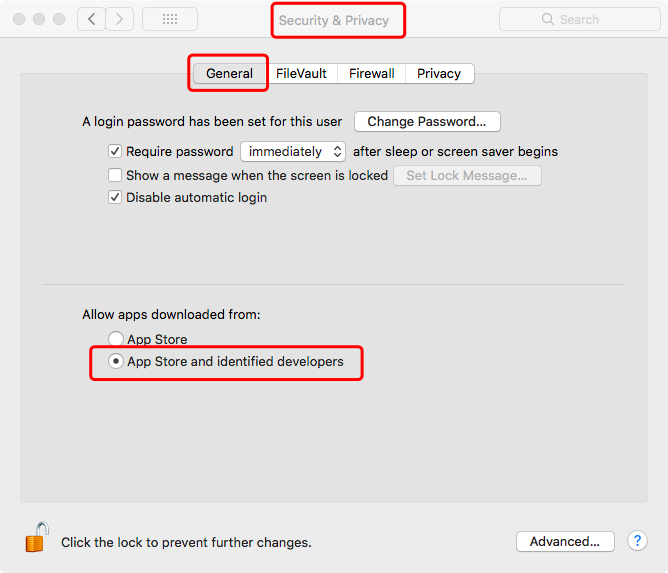
Om din Mac blockerar dig från att installera appar från oidentifierade företag kommer vi att ge dig stegen för hur du helt enkelt laddar ner och installerar den.
- Gå till Systeminställningar
- Find and click on Security &Privacy
- Change the setting for 'Allow apps downloaded from' till 'App Store and identified developers'
Vissa appar är dock fortfarande förbjudna att installeras på Mac, om du upplever detta, följ helt enkelt dessa steg:
How to open apps on Mac from unidentified developer:
- Click System Preferences
- Go to Security & Privacy
- Under ‘Allow Apps Downloaded from’, you will see the override button ‘Open Anyway’.
- Bekräfta åtgärden
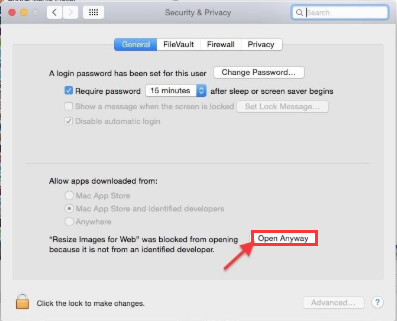
Detta kommer nu att uppmana Mac att tillåta nedladdning och installation av den oidentifierade appen.
Part 3. How to Remove App Not Safe on Mac?
When you have already installed apps and you realized it is not safe, then better do something at the earliest to remove the app not safe on Mac.
Här är stegen på how to remove apps on Mac:
- Locate the app in the Applications folder
- Drag and drop the app into the trash folder or click and choose Move to trash
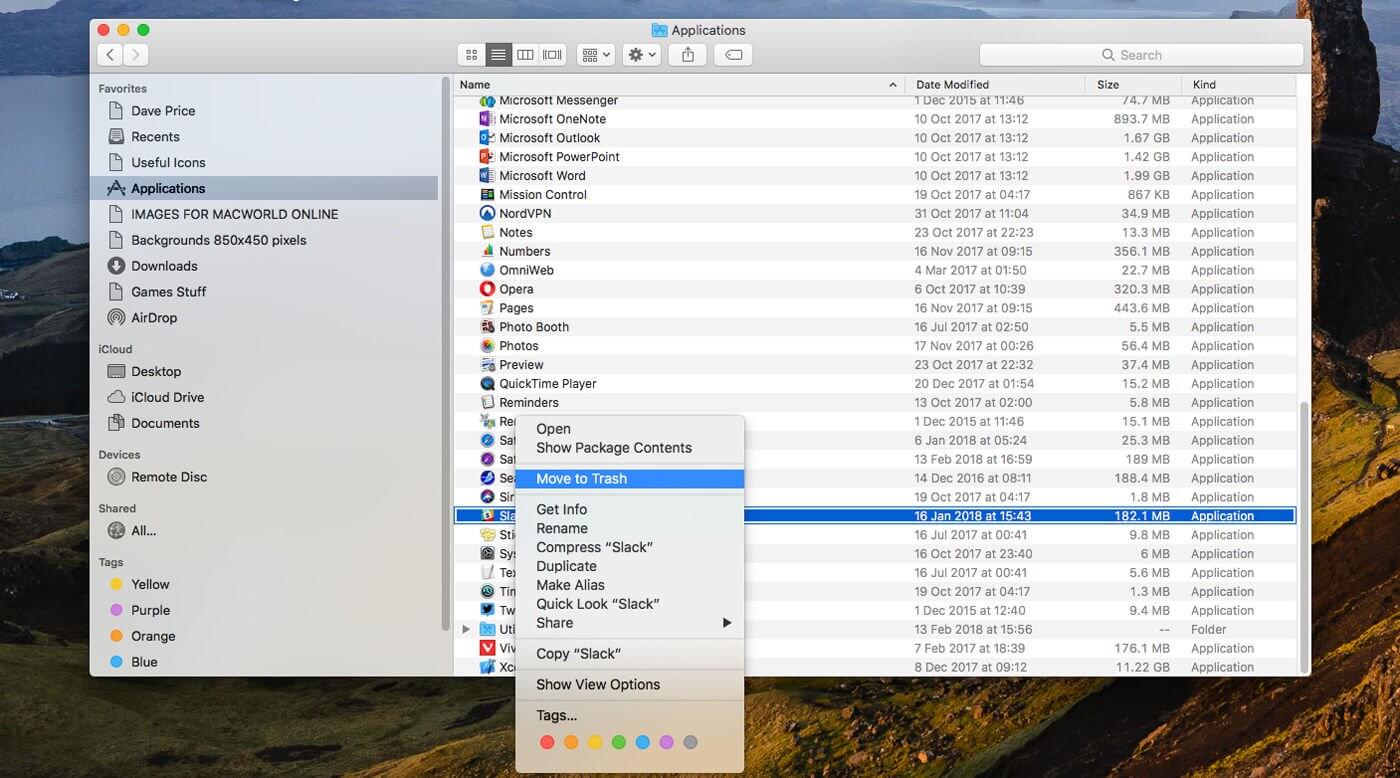
This is where Apple is more advanced than Windows, security. macOS does not easily let you download and install apps from third-party developers but the latter allows you to do so in any given situation and at your own risk.
Part 4. How Do I Completely Delete An App Not Safe on Mac?
Of course, it isn’t that easy to install malware apps in case you did. Some of its codes are spread somewhere in the system’s folders. This is a big headache when you are unable to locate its related files elsewhere. Your privacy and vital information are susceptible to infections.
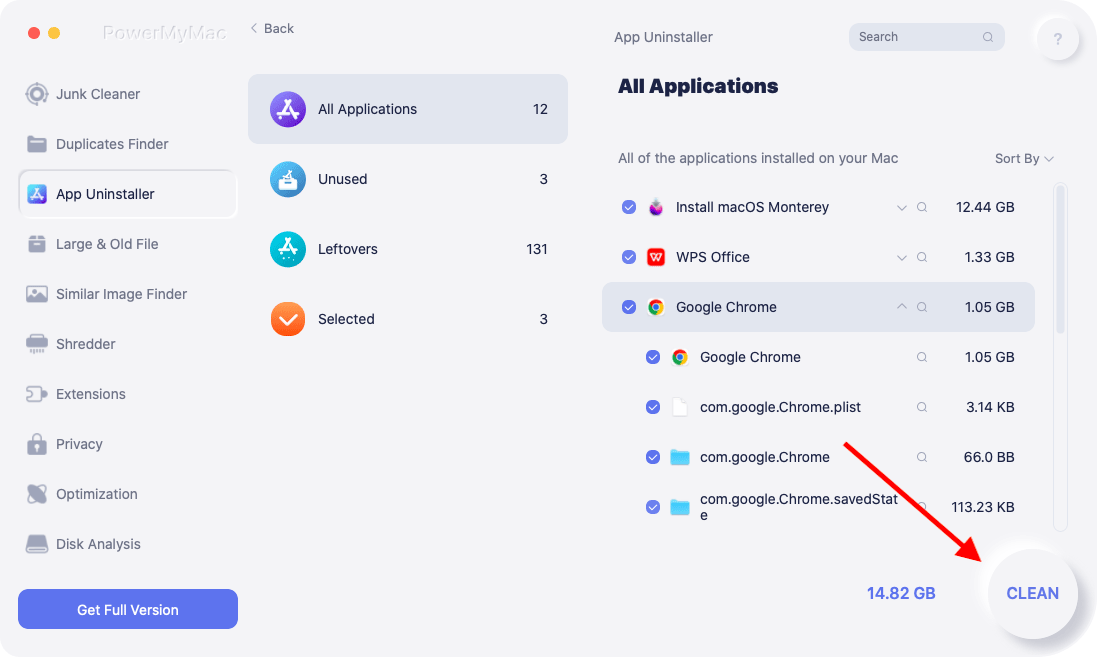
Good thing there is a program dedicated to clean up these kinds of apps and malware-related software. iMyMac PowerMyMac is an effective solution that cleans and speeds up the Mac system and it's totalt Notariserad av Apple. All you need is to download the program and follow its click-through based on screen instructions.
Här är en snabb bild av hur du använder PowerMyMac:
 Få en gratis provperiod nu!
- Free download and launch PowerMyMac, choose App Uninstaller then click AVSÖKA.
- After scanning, preview and select the unsafe apps.
- Click CLEAN to remove the unsafe app and all its related files.
Del 5. Sammanfattning
Mac regerar fortfarande överhöghet när det kommer till säkerhet och skydd. Endast ett fåtal hackare har lyckats ta sig igenom men ändå fångas upp av Apple. Du har makten att hålla jämna steg med detta skydd eller bryta mot reglerna och ge vika för att appen som inte är säker på Mac kan laddas ner.
Om det finns ett behov av att installera appar från tredje part som inte är listade eller granskade av Apple, överväg punkterna vi nämnde ovan innan du gör det. Om du tror att du redan har laddat ner och installerat app/er är osäkra, använd PowerMyMac to thoroughly check the entire system and clean up your Mac easily. It will even remove the app completely including its related files.



